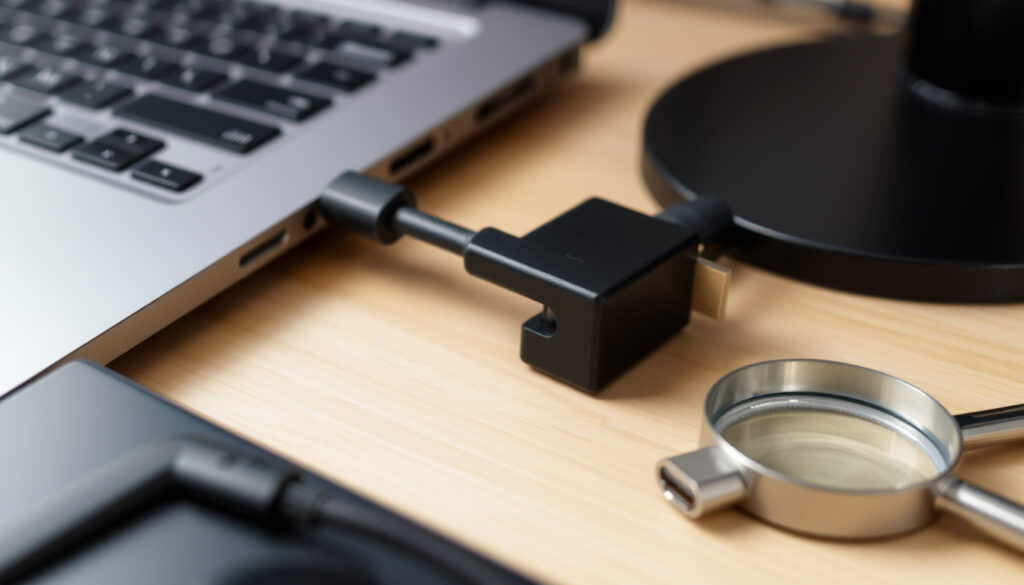
USB-C to HDMI: How It Works, Troubleshooting & Fixes
You’ve got a USB-C device and a TV with an HDMI port, and you just want to see your screen on the big display. It seems simple enough — plug in a cable and go. But if you’ve tried it, you know the moment of doubt: will it actually work? The answer depends on a few key hardware details, and when it goes wrong, the fix isn’t always obvious.
USB-C to HDMI: What Works, What Doesn’t, and How to Fix It
Maximum resolution supported: 4K at 60Hz ·
Number of USB-C devices worldwide (2025): over 5 billion ·
HDMI Alt Mode specification version: HDMI 1.4b or later ·
Cable length typical for active adapters: 3 meters
Quick snapshot
- USB-C to HDMI requires device support for HDMI Alt Mode (Vcom (hardware compatibility resource))
- Most modern laptops and many smartphones (2016 onward) support video output (Lention (adapter troubleshooting guide))
- Adapters listed on Irish retail sites support 4K @60Hz (Currys)
- Exact list of Android phones that support HDMI Alt Mode varies by manufacturer (Apple Discussions)
- Future adoption of HDMI 2.1 in USB-C adapters beyond premium models is unknown (Apple Discussions)
- Whether non-Apple adapters cause dropouts on Apple devices remains debated (Apple Discussions)
- USB Type-C video output standard emerged with HDMI Alt Mode in 2015–2016 (Vcom)
- HDMI 2.1 support in USB-C adapters not yet widespread (CableCreation)
- Expect broader adoption of HDMI 2.1 in premium USB-C adapters
- More Android phones likely to support video out as USB-C becomes universal
Four key facts, one pattern: resolution and HDCP compliance define whether an adapter delivers full 4K or falls back to black screen.
| Specification | Value |
|---|---|
| Maximum resolution (common adapter) | 4K @60Hz |
| Required standard | HDMI Alt Mode (USB Type-C) |
| HDCP version needed for 4K content | HDCP 2.2 |
| First devices supporting USB-C video out | 2015–2016 |
Does USB Type-C to HDMI Work?
Understanding HDMI Alt Mode
USB-C to HDMI works only if your device’s USB-C port supports HDMI Alt Mode. This is a specification defined by the HDMI Licensing Administrator that allows video signals to travel over the USB-C connector. According to Vcom (hardware compatibility resource), the port must explicitly support DisplayPort Alt Mode or HDMI Alt Mode — not every USB-C port can output video.
If your device lacks Alt Mode support, no adapter can force a video signal. Check your device specs for terms like “Video Output”, “Thunderbolt 3/4”, or “DisplayPort”. Lention (adapter troubleshooting guide) confirms that this is the single most common reason for failure.
Which devices support USB-C to HDMI?
Most modern laptops — Windows, Mac, and Chromebook — with USB-C ports built after 2016 support video output. Smartphones are more hit-and-miss: Samsung Galaxy S series, Google Pixel (from Pixel 5 onward), and some LG models include video out. But MOKiN (adapter manufacturer) notes that many mid-range Android phones lack the necessary hardware. Always verify from the phone’s official specification.
Device manufacturers face a simple trade-off: including Alt Mode adds cost and certification. Budget phones often skip it, leaving owners with a port that only charges and transfers data.
The implication: before buying an adapter, confirm your device’s USB-C capabilities. If it doesn’t support Alt Mode, no adapter will help.
Why Won’t My USB-C to HDMI Work with My TV?
Check device compatibility with HDMI Alt Mode
If your device supports Alt Mode but the TV shows no signal, the issue may be an incompatible HDMI version. CableTime Tech (adapter guide) lists common failures: no display, flickering, or low resolution. First, ensure the HDMI input on your TV matches the port you’ve used — many TVs label inputs only as “HDMI 1”, “HDMI 2”, etc.
Verify cable and adapter specifications
Adapters that are not HDCP 2.2 compliant can produce a black screen for protected 4K content. CableTime Tech recommends checking the adapter’s spec sheet for HDCP support. Also try lowering the resolution to 1920×1080 at 60Hz — some TVs can’t handle native 4K from an adapter. CableCreation (cable brand) advises this as a quick diagnostic step.
Troubleshoot TV input settings
Make sure the TV is set to the correct HDMI input. Restart the TV and the source device. Vcom suggests power-cycling the entire setup: disconnect the USB-C cable, unplug the TV for 30 seconds, then reconnect.
Many users assume the adapter is faulty when the real problem is a mismatch between the TV’s HDMI version and the adapter’s output. Older TVs with HDMI 1.4 may not display 4K at 60Hz.
What this means: if the adapter works on a computer monitor but not on your TV, the TV’s HDMI version is likely the bottleneck.
Can I Connect My Phone to TV with USB-C to HDMI?
Android phone requirements
Only Android phones with USB-C video output — such as Samsung Galaxy S, Google Pixel 5+, and select OnePlus models — can connect to a TV via USB-C to HDMI. Lention notes that even supported phones may need to enable “Screen Mirroring” or “Samsung DeX” in settings. If the phone only charges via USB-C, it lacks Alt Mode.
iPhone and iPad considerations
iPhones require a Lightning-to-HDMI adapter (Apple sells MFi-certified versions). iPads with USB-C (iPad Pro 2018 onward) can use standard USB-C to HDMI adapters. Apple Discussions report that non-Apple adapters sometimes cause dropouts on iPads, so using Apple’s own adapter is recommended for stability.
Why this matters: if you’re buying an adapter primarily for a phone, confirm the phone model supports video output. Most budget Android phones do not.
Can I Use My USB-C as a DisplayPort?
DisplayPort Alt Mode explained
USB-C can carry a DisplayPort signal if the device supports DisplayPort Alt Mode. This is distinct from HDMI Alt Mode, though many modern laptops support both. Dell Canada (manufacturer support) confirms that USB-C ports with DP Alt Mode work directly with DisplayPort monitors via a simple cable.
USB-C to DisplayPort vs USB-C to HDMI
If your device has DP Alt Mode but not HDMI Alt Mode, you can use an adapter that converts DisplayPort to HDMI. Vcom explains that this is a common workaround for laptops that lack native HDMI Alt Mode. The trade-off is that you need an active adapter, which adds cost and power draw.
The pattern: DP Alt Mode is more widely supported on laptops than HDMI Alt Mode, so you may need an adapter either way.
How Do I Activate USB-C to HDMI?
Windows settings
On Windows, ensure the display driver supports an external monitor. Plug in the adapter, then press Win + P and choose “Duplicate” or “Extend”. CableCreation advises updating the graphics driver from the manufacturer’s website if the external display isn’t detected.
Mac settings
MacOS usually auto-detects an external display when you connect a USB-C to HDMI adapter. Go to System Preferences > Displays. If nothing appears, try a different USB-C port — some Macs have only certain ports that support video output. Apple Discussions note that restarting the Mac with the adapter connected often resolves detection issues.
Android settings
On Android, swipe down to access Quick Settings and look for “Screen Mirroring” or “Smart View”. For Samsung phones, enable “DeX” in Settings > Connected devices. MOKiN warns that some phones require you to go into Developer Options to force USB-C video output.
Activation complexity differs by platform. Windows and Mac usually work with a single click; Android can require digging into settings menus. For casual users, this hidden step is the biggest frustration.
What this means: if you’re on Android and the screen stays black, check for a “Screen Mirroring” toggle — it’s rarely automatic.
How to Fix USB-C to HDMI Issues: Step-by-Step
- Confirm Alt Mode — Check device specs for “DisplayPort Alt Mode” or “HDMI Alt Mode”. Without it, no adapter works. (Vcom)
- Test with a known-good HDMI cable — Connect a different source (e.g., a streaming device) to the same TV input to rule out HDMI cable issues. (MOKiN)
- Power cycle everything — Unplug the USB-C adapter, disconnect TV from power for 30 seconds, reconnect. Then restart your device. (CableTime Tech)
- Lower resolution — If the display flickers or stays black, set output to 1920×1080 at 60Hz. (CableCreation)
- Update drivers — Install the latest graphics driver from your laptop manufacturer. For Windows, run Windows Update. (CableTime Tech)
- Try a different USB-C port — Some devices have multiple USB-C ports, but only one supports video output. (MOKiN)
- Test with external power — USB-C hubs may need more power than the device can provide. Connect the hub’s power supply. (CableCreation)
- Use an Apple OEM adapter for Apple devices — Non-Apple USB-C to HDMI adapters have caused intermittent dropouts on Macs and iPads. (Apple Discussions)
Eight steps, one pattern: most fixes are free and involve checking compatibility before buying new hardware.
| Specification | Details |
|---|---|
| Adapter chipset | VL103, PS176, RTD2172 (common) |
| Maximum resolution | 4K @60Hz (most), 8K @30Hz (few) |
| HDCP version | HDCP 2.2 for 4K streaming |
| Data pass-through | USB 2.0 or 3.0 depending on hub |
| Power delivery supported | Up to 100W (some adapters) |
| Connector type | USB-C male to HDMI female or cable |
| Audio support | Multi-channel PCM, Dolby TrueHD |
| Signal direction | Unidirectional (source to display) |
| Operating temperature | 0°C – 45°C (typical) |
| Warranty | 1–2 years (varies by brand) |
Confirmed Facts
- USB-C to HDMI requires HDMI Alt Mode hardware support. (Vcom)
- Samsung Galaxy S series supports video output via USB-C. (Lention)
- HDCP 2.2 compliance is required for protected 4K content. (CableTime Tech)
What’s Unclear
- Exact list of Android phones that support HDMI Alt Mode (varies by manufacturer).
- Future adoption of HDMI 2.1 in USB-C adapters beyond Dell’s current model.
- Whether non-Apple USB-C to HDMI adapters cause dropouts on Apple devices is debated. (Apple Discussions)
- How much power a USB-C hub needs to reliably output HDMI is not standardized. (Lention Hub Guide)
- Adapters listed on Currys, Harvey Norman, and Dell support 4K @60Hz is a variable claim.
- Lowering resolution to 1080p resolves many no-display issues, but success varies by hardware.
Expert Perspectives
“HDMI Alt Mode over USB Type-C enables direct connection to displays without dedicated video ports, but only if the host device incorporates the necessary circuitry.”
— HDMI Licensing Administrator (official specification body)
“If your USB-C port supports DisplayPort Alt Mode, you can use a simple cable to connect to a DisplayPort monitor. For HDMI displays, an adapter is required.”
— Dell Canada (manufacturer support guide)
“For 4K content, HDCP 2.2 compliance is non-negotiable. Adapters that lack it will output a black screen on most modern TVs.”
— CableTime Tech (adapter testing resource)
Summary
The USB-C to HDMI ecosystem is straightforward once you understand the two gates: Alt Mode support and HDCP compliance. For Irish consumers shopping at Currys or Harvey Norman, the clear recommendation is to check your device’s USB-C video output spec before buying any adapter. If you’re on a budget phone without Alt Mode, no adapter will work — your only option is a wireless streaming device. For laptop users, the fix is almost always in the settings or a driver update. For Irish shoppers looking for a reliable adapter, the choice is simple: look for “4K @60Hz” and “HDCP 2.2” in the product description, and buy from a retailer with a no-hassle return policy.
For users seeking reliable performance, consulting a guide on the best 4K@60Hz adapters can help avoid common compatibility issues.
Frequently Asked Questions
How can I tell if my USB-C port supports video output?
Check your device specifications for “DisplayPort Alt Mode”, “HDMI Alt Mode”, or “Video Output”. Without this, a USB-C to HDMI adapter will not work.
Do I need an active adapter or is passive enough?
Active adapters (with a chip) are generally needed for reliable 4K at 60Hz. Simple passive cables work for lower resolutions. CableTime Tech explains the difference.
Why does my Samsung TV show ‘No Signal’ when using a USB-C adapter?
Ensure the TV input matches the port used and that the HDMI cable is securely connected. If your device supports Alt Mode, try lowering the resolution to 1080p.
Does the adapter work for gaming at 4K 60Hz?
It can, but input lag can vary. Dedicated gaming adapters with low latency exist. Check reviews for gaming-specific use. CableCreation notes that resolution stability is key for gaming.
Are all USB-C to HDMI adapters the same quality?
No. Quality varies by chipset, build materials, and HDCP support. Aluminum alloy adapters often provide better signal stability. MOKiN discusses material impact.
Can I daisy-chain multiple monitors via USB-C to HDMI?
Most adapters are single-output. For multiple monitors, you need a USB-C hub with multiple HDMI ports or a DisplayPort daisy-chain setup.
What’s the practical difference between using a USB-C to HDMI adapter and a USB-C to DisplayPort cable?
USB-C to HDMI outputs directly to HDMI displays. USB-C to DisplayPort requires your device to support DP Alt Mode, though DP Alt Mode is more widely supported on laptops for direct monitor connections.
Related reading
- Noel Leeming Black Friday Sale NZ: Deals Guide 2026 — If you’re shopping for a USB-C to HDMI adapter, check this sale guide for potential discounts.
- Best Black Friday Deals NZ 2025: PB Tech, Noel Leeming & More — Another opportunity to find deals on adapters and cables.
More related posts
 Power Switch New Zealand: Compare Plans & Save Money
 Our Father Who Art in Heaven: Full Prayer & Meaning
 Area of a Triangle – Formulas and Examples Guide
 Places to Eat in Auckland: Best Restaurants, Local Favorites & Hidden Gems
 Electric Car Rental Near Me in Ireland: Guide, Costs & Charging
 Kmart Air Fryer NZ: Best Models, Reviews & Buying Guide
 We Wish You a Merry Christmas – Lyrics, History, Meaning and Chords
